
Working with an AI agent
An AI agent such as Claude Code works in the same circuit you see, with the same operations as your own clicks, and you watch it happen. It connects through MCP, the Model Context Protocol, with the server bspice mcp. When the desktop app isn’t running, the same tools edit circuit files on disk instead.
52.1Setting up Claude Code
claude mcp add bspice -- "C:\Program Files\BetterSPICE\bspice.exe" mcp
Or in an MCP configuration file:
{ "mcpServers": { "bspice": { "command": "C:\\Program Files\\BetterSPICE\\bspice.exe", "args": ["mcp"],
                     "env": { "BSPICE_AGENT_NAME": "claude" } } } }
- The app listens on
ws://127.0.0.1:47800, on this computer only.BSPICE_PORTchanges the port for both the app and the agent. - The agent needs the key in
%APPDATA%\BetterSPICE\agent-token, which the MCP server reads by itself. Treat it as a secret. - The agent's name, shown as AI · name, is
BSPICE_AGENT_NAME, else the name the agent reports, else agent. - If the app isn’t running, the tools work on files ("headless"). If the app is running but the connection fails, every result says so: "Note: this ran headless on files, NOT in the BetterSPICE window: …"
52.2What you see while an agent works
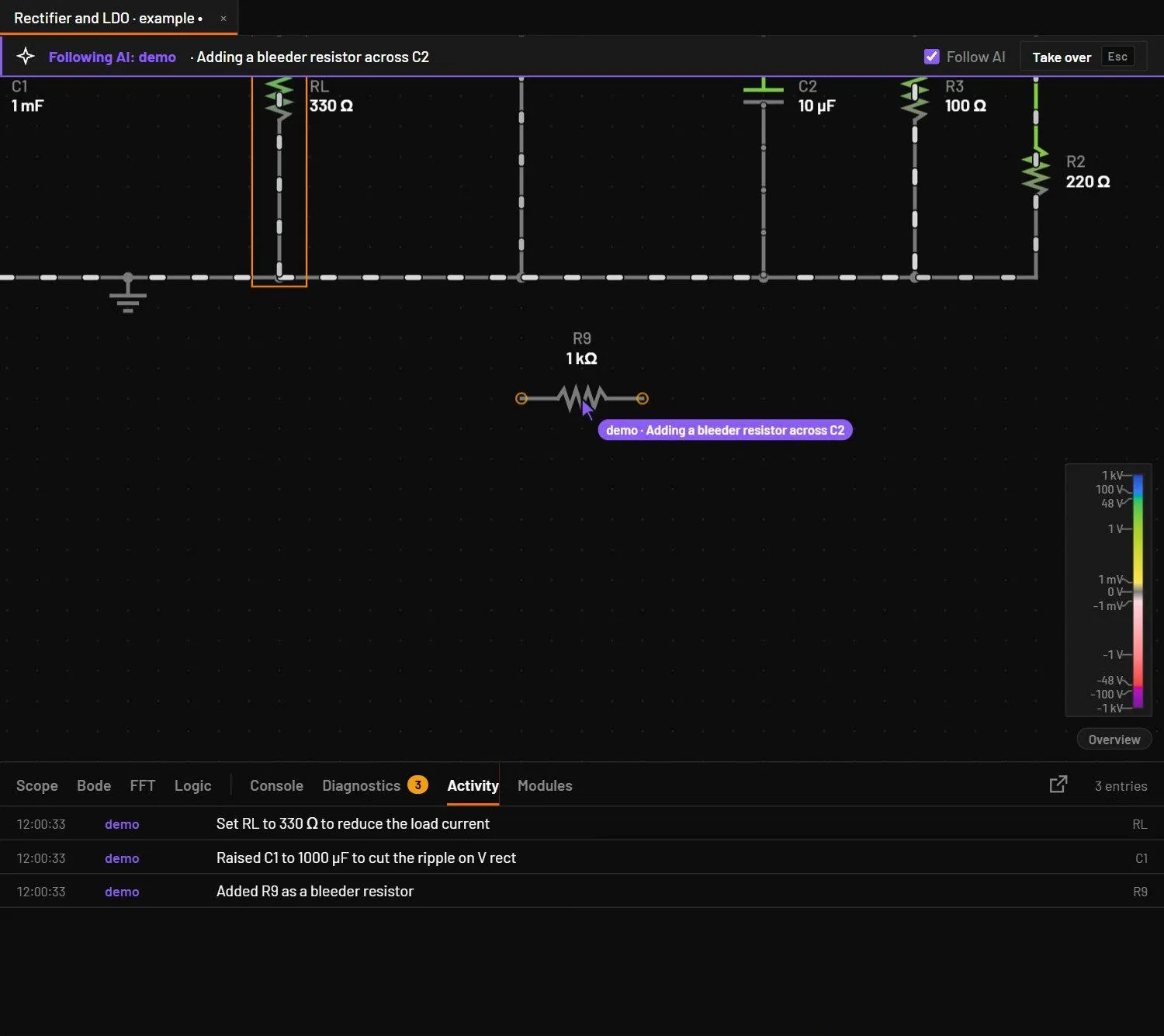
| What you see | Meaning |
|---|---|
| Following AI: name · action | The bar at the top of the canvas names the agent and what it’s doing. Its cursor moves to each part it touches. The bar fades four seconds after its last action. |
| Follow AI | The pill appears once an agent has talked to the window in this session; the View menu entry is always there. On by default: your view pans and zooms to what the agent touches. Turn it off (Ctrl+Shift+F) to keep your view where it’s while its edits still appear. |
| Take over or Esc | Stops the agent: its edits are refused for 10 seconds, and Follow AI turns off. Reading tools still work. |
| AI badge | In the inspector, on parts an agent changed last. |
| Activity | Every edit and run, with the agent's name in violet. |
| Pinned notes | Violet notes the agent pinned to the schematic. Click to dismiss. |
Edits by an agent are normal undo steps: Ctrl+Z takes them back. Parts and symbols an agent creates go to My parts.
52.3Every tool
| Tool | Arguments | What it does |
|---|---|---|
open_circuit | path or json | Opens a circuit, like File, Open. |
get_circuit | The circuit, the file, the selection and the view. | |
save_circuit | path | Saves it. |
apply | ops | Applies a list of edits as one undo step. |
add_part | type, id, at, rot, mirror, variant, pins, p | Places a part. With p.modelId it takes the catalogue model's live values. |
add_wire | a, b, via | Draws a wire. A diagonal becomes two segments. |
set_param | id, key, value | Sets a parameter, the variant or the designator. |
delete | ids | Deletes elements. |
move | ids, dx, dy | Moves elements, wires follow. |
select | ids | Selects in your view (app only). |
view_focus | ids or points | Pans your view there, unless you turned Follow AI off (app only). |
view_set | zoom, center | Sets your view (app only). |
open_panel | name | inspector, diagnostics, activity, scope, bode, fft, examples, palette, wizard, simsetup, about, shortcuts (app only). |
set_mode | mode | schematic, analysis or split (app only). |
show_trace | probe | Shows a probe's trace (app only). |
annotate | at, text | Pins a note on the schematic (app only). |
run_live | speed | Runs the live simulation (app only). |
pause | Pauses it (app only). | |
simulate | analysis, stop, maxStep, source, out, at, fStart, fStop, ptsPerDec, start, step | Runs op, tran, ac, dc, noise, pz or loopgain, with ngspice or PSpice for vendor models, and returns the signals and measurements. noise and pz need out, the output net. loopgain needs at, the break point. An engineering text value such as 10m is taken. |
run_analysis | as simulate, plus out, all, start | Runs the analysis in the Analysis view you see. |
get_measurements | names | Live probe values and min, max, mean, RMS, peak to peak and final of the last run. |
get_waveform | name, maxPoints, from, to | A signal's data, thinned to maxPoints (500). |
get_diags | The diagnostics. | |
screenshot | A picture of your canvas, or a render when there’s no window. | |
list_parts | query | Part files in the parts library. |
parts_list | query, kind, source | My parts and the part library. |
parts_get | id | One part or symbol with its data. |
create_part | bspart, replace | Validates a part file and saves it to My parts and the circuit. |
create_symbol | symbol, replace | Saves a symbol. |
place_part | partRef, at, rot, mirror, id, p | Places a part from My parts or the library (app only). |
symbols_list | builtin | The symbols, and optionally the built-in ones. |
list_examples | query, category, offset, limit | The example circuits. |
open_example | path or name, newTab | Opens an example as an unsaved copy, in a new tab unless the current one is empty. |
import_file | path or name and base64, flat, addSupplies, open | Imports a KiCad or EasyEDA Pro file. |
get_report | out, fftProbe, maxChars | Writes the HTML report and returns its text. |
verify_circuit | Compares the engine with ngspice on this circuit. | |
get_events | Events since the last call: edits, selection, view, simulation state, diagnostics, activity. |
52.4Edits (ops)
Every change is an op. A list of ops sent with apply is one undo step, and if one op fails, none is applied.
| Op | Fields | Effect |
|---|---|---|
add | part {type, id, variant, p, pins or at, rot, mirror, symbol, symPins} | Adds a part. A missing or taken id gets the next free one. |
wire | a, b, via (hv or vh) | Adds a wire. |
move | ids, dx, dy | Moves elements. |
rotate | ids, dir | Rotates 90°. |
mirror | ids | Mirrors. |
set | id, key, value | Sets a parameter (null removes it), the variant, the id, the pins, the slider ranges, or a source type. |
del | ids | Deletes elements. |
label | name, at | A net label. |
probe | probe {label, kind, at or part, scope} | A probe. |
doc | key, value | name, description, category, or a sim key. |
power, global, port, graphic, sheet, bus, busEntry, subcircuit | Flags, labels, ports, drawings, sheets, buses (app only). |
Coordinates are whole grid units. Element ids: parts by designator, wires w:x1,y1,x2,y2, labels l:name@x,y, probes p:label. Working on files without the app, add with at places two-pin parts and ground by itself. Other parts need explicit pins.
- Open the app and start Claude Code with the bspice server configured.
- Ask: "Build a 1 kHz second-order Sallen-Key low-pass with a TL072 and show me its Bode plot."
You should seeThe presence bar shows each step as the agent places parts, wires them, probes the output and runs the AC sweep in the Analysis view in front of you. Press Esc at any time to take over.
52.5Errors an agent can get
| Code | Meaning |
|---|---|
| -32700, -32600 | The message isn’t JSON, or not a valid request. |
| -32601 | Unknown tool or method. |
| -32602 | A missing or wrong argument. The message names it. |
| -32001 | Not authenticated, or you took over (retry in N seconds). |
| -32002 | No BetterSPICE window is connected. |
| -32003 | The window didn’t answer within 30 s (600 s for simulations). |
| -32010 | The tool ran and failed. The diagnostics are attached. |
| -32603 | An unexpected failure in the window. |
52.6The control API for your own scripts
Any program can drive the app over WebSocket JSON-RPC 2.0: connect to ws://127.0.0.1:47800/?token=<token>&agent=<name>, call hello, then subscribe to events (circuit.changed, selection.changed, view.changed, sim.state, sim.diags, sim.frame at most ten a second, file.changed, activity), and call the same methods as the tools above. bspice serve runs the same server without a window, for the browser version.