
The library and model search
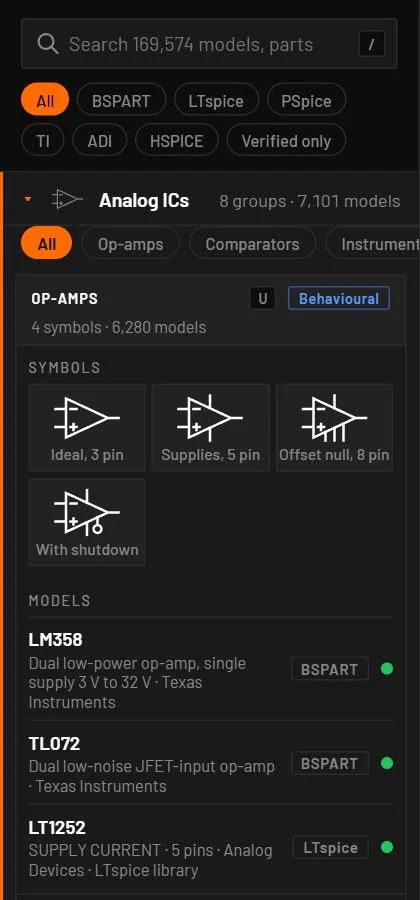
The library is the left pane. It holds every placeable part type and every model in the catalogue, sorted into families such as Passives, Sources, Diodes and thyristors, Transistors, Analog ICs and Power management. An open family shows chips that pick a sub-group, and each sub-group is an outlined block with its Symbols (the tiles you place) and its Models (the vendor models that belong to it).
23.1Searching
- Press / to jump to the search box. Esc clears it. Up and Down highlight a result and Enter places it. Enter with nothing highlighted places the first one.
- Type a value with a kind of part, such as
10k resistor,100nF,5V sourceor4.7uH, and the first result is a generic part with that value. - Type part numbers, makers, functions or descriptions. Every word must match.
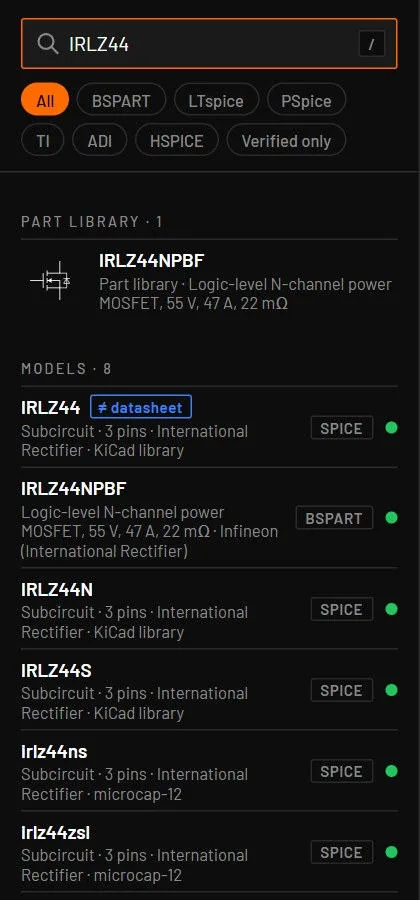
IRLZ44,logic level mosfetandtexas instruments comparatorall work. - Spelling of part numbers is forgiving:
irf 540,irf-540andIRF540are the same search, and a part number one or two letters off still finds the part. - Results are listed in sections: My parts, Symbols (part types, click to place), Examples (click to open) and Models. Exact part numbers rank first, then prefixes, then other matches, working models before ones with problems, and BetterSPICE part files first. Symbols rank by their own name (exact, then prefix, then a word, then anywhere) before matches in a group's name, so
isolatedlists Isolated ground ahead of the resistor arrays named 4 isolated. Each part number has one row, from its best source, with +N other models to show the rest. - When models match, only the first two examples are shown, headed Examples · 2 of 6 · E opens all, so the models stay in view. With no model match, all matching examples show.
- The catalogue loads in pieces. The first results appear at once and a line says how much is loaded. When the search finds parts, symbols or examples but no model, the models section is one quiet line instead of an empty block.
- When nothing matches, the card shows near matches, how many results there would be without the filters, and buttons to Clear filters or Clear search. It suggests a function search such as
ldo 3.3or building a Quick model.
23.2Source filters
| Chip | Shows |
|---|---|
| All | Everything. Clicking it clears the other chips. |
| BSPART | BetterSPICE part files: a symbol, a model and the datasheet limits in one file. |
| LTspice | Models in LTspice syntax. |
| PSpice | Models in PSpice syntax. |
| TI | Texas Instruments, including Burr-Brown and National. |
| ADI | Analog Devices, including Linear Technology and Maxim. |
| HSPICE | Models in HSPICE syntax. |
| Verified only | Models that ran in ngspice unchanged or after conversion, with no known issue. |
Chips can be combined. They apply to the search results and to the model lists in the tree.
23.3Families and subcategories
The tree opens with Passives and Sources expanded and remembers which families you opened, and where you scrolled to. A Recent family at the top lists the parts you placed last. Tiles and model rows can be dragged onto the canvas. The part drops where you release it. Orange marks only the open family (a 2 px bar, its caret and icon), the chip you picked and the tile under the pointer. Everything else is white, grey and hairlines. An open family has a row of chips: All, then one chip for each sub-group, such as Op-amps or Comparators. The mouse wheel scrolls the row sideways. Each sub-group block shows:
| Item | Meaning |
|---|---|
| Header | The sub-group's name, the key that places its part where there's one, and how many symbols and models it holds. |
| Level badge | Shown only when a group isn't exact, so no badge means the device equations are exact (checked against ngspice). Behavioural: a fitted behavioural model. Pass-through: the vendor model runs as it is. Placeholder: drawn and exported, not simulated yet. The tooltip of a badge has this legend. |
| Symbols zone | Tiles with each symbol style, for example a resistor as a box or a zigzag. Click one to place it. symbol only means the engine has no model for it, so it's drawn and exported but left out of the simulation. planned means it's not in the editor yet. |
| Models zone | The group's top three vendor models, and Show all for the full list. ← back returns to the tree. |
23.4Every model once, and Show all
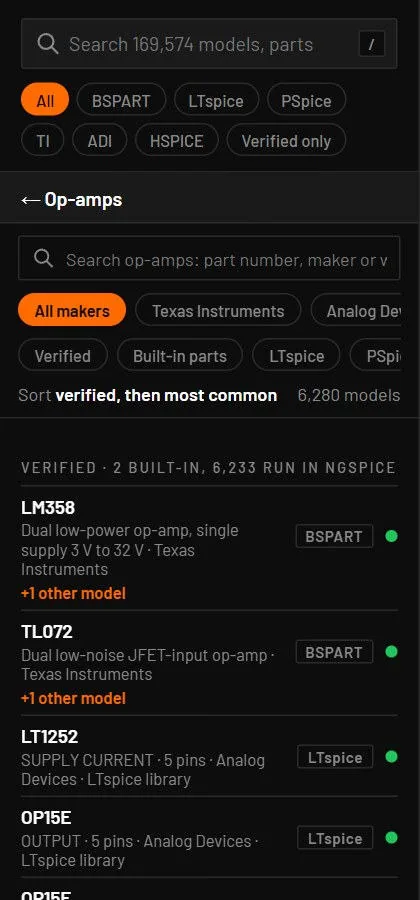
Every vendor model appears exactly once, under its own sub-group. Kinds that several groups share are split: diodes into rectifier and signal, regulators into LDO and DC/DC, and logic chips by their 74xx or 4000 function (gates, buffers, flip-flops, counters, shift registers, multiplexers, monostables). Models that the catalogue could not classify go to the group of what they are: capacitor, inductor, ferrite bead, common-mode choke, resistor, transformer, varistor, thermistor, thyristor or crystal. Within a group, verified models come first, then the most common ones.
Show all opens one group on its own. It has a search box for part numbers, makers and words, a pill for each of the top five makers with a +N button for the rest, source pills (Verified, Built-in parts, LTspice, PSpice) and a count such as 39 of 6,280. The list has two sections: verified models, then models that need PSpice, are encrypted or fail. Up, Down and Enter work from both search boxes.
The unsorted vendor models, about 95 000 of them, load only when you ask: when you open a family that needs them, press Show all or search. Until then such a family shows how many groups it has, and a group shows a Load button. This keeps the app's memory use low at start-up.
23.5Switch, Relay and Generic IC
There is one Switch tile and one Relay tile. A Switch has a pill for toggle, push and SPDT, and a Relay one for SPST, SPDT and latching. Click a pill to place that variant, or drag it onto the canvas. Generic IC is one tile, a box whose pin names, sides and title you type in the inspector. It takes a vendor subcircuit through Assign model, and Move pins changes where its pins sit.
23.6Model rows
Each model row shows the part number, a description, the maker and the origin, a format tag (SPICE, LTspice, PSpice, HSPICE, BSPART) and a status dot.
| Dot | Tooltip | What Simulate does |
|---|---|---|
| Green | Verified: runs in ngspice unmodified. | Runs the vendor model in ngspice. |
| Amber | Verified after conversion to ngspice syntax. | Runs the converted model in ngspice. |
| Green, PSpice | Cadence-encrypted, verified in PSpice. | Runs the vendor model in PSpice for TI (desktop with PSpice installed). |
| Red with a replacement | Replaced by X from Y. | Placing it places the working stand-in instead and a message says so. |
Models that can't run in any engine are no longer in the catalogue (Retired models).
23.7Placing from the library
Click a symbol tile or a model row, then click the canvas. Placing a model from the library sets up everything the part needs to simulate:
- the device type,
- the pin map from the symbol pins to the model pins,
- the parameters the live simulation uses,
- the reference to the vendor file that Simulate loads.
A message appears in three special cases: the model has no live fit, the model is placed as its own IC box with the vendor's pins, or a working stand-in replaces the model.
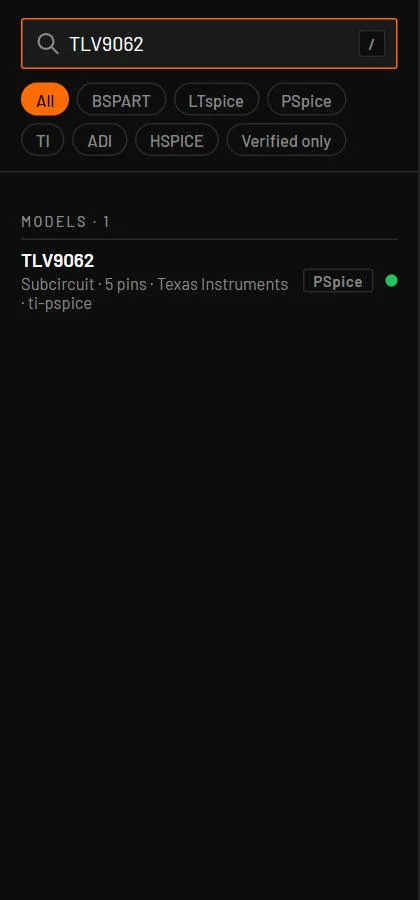
- Press / and type
tlv9062. - Click the TLV9062 row in Models, then click the canvas.
- Wire it as a follower and press F5.
You should seeThe live simulation runs the fitted op-amp model. Simulate runs TI's own model in ngspice, and the progress line says so.
23.8My parts
My parts is the first family. It lists the parts and symbols you made with the Part Wizard and the symbol editor, those an AI agent made, and files you added. Its header has New symbol… and New part…. Each row has Edit symbol, and your own items have Remove, which asks Confirm first. Below your own parts, Part library lists the read-only parts shipped with BetterSPICE. With none of your own, the My parts row reads N in the part library. My parts has the details.