
Symbol editor and My parts
(Ctrl+Alt+B) draws a schematic symbol: pins, lines, rectangles, circles, arcs, polylines and text. It also opens from New symbol… and Edit symbol in My parts and from Draw symbol… / Edit symbol… on step 4 of the Part Wizard, over the wizard, on the part's pin table. While it’s open every other shortcut is off except Esc.
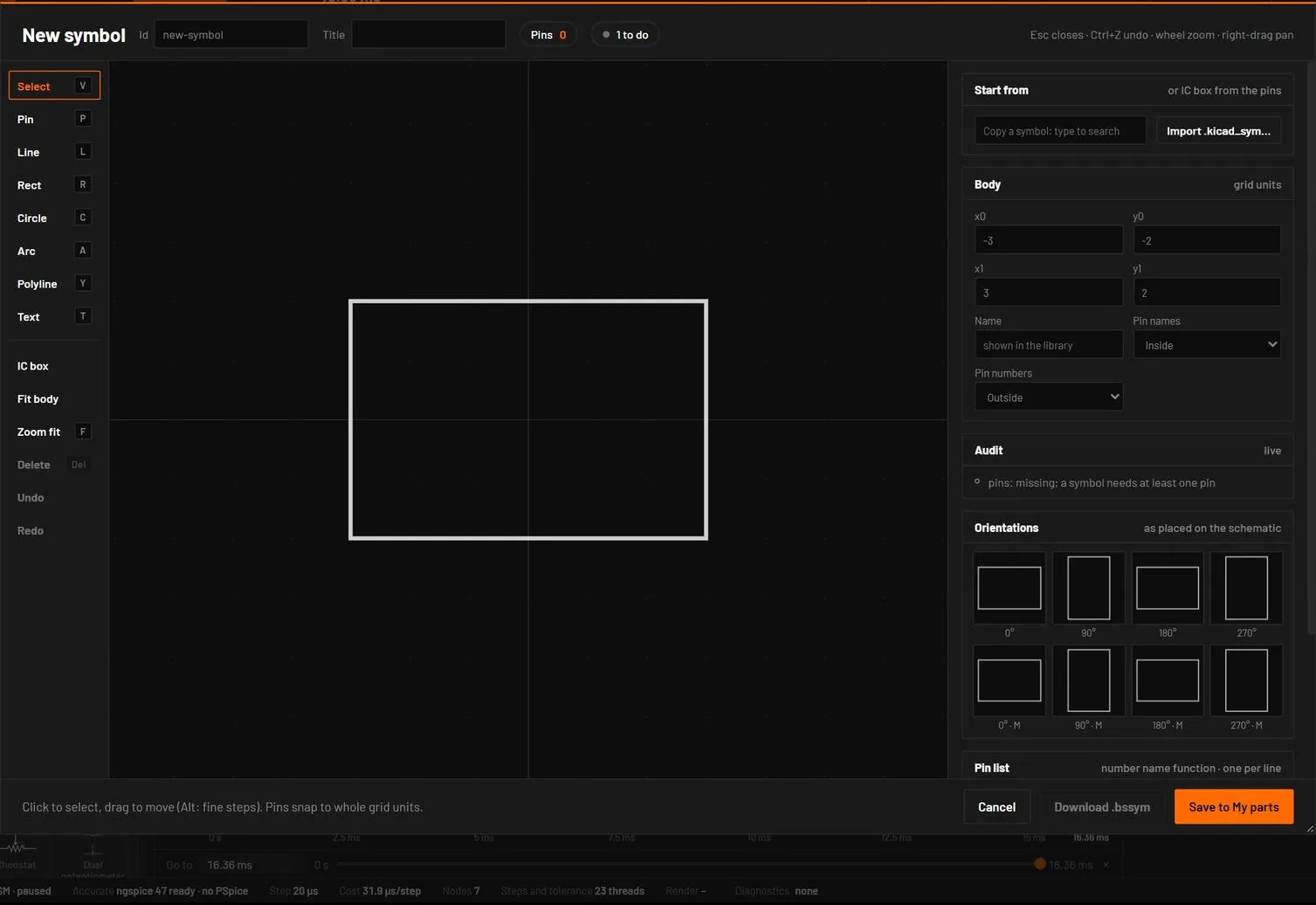
46.1What Save does
| Opened from | Title | Main button | Result |
|---|---|---|---|
| Tools or New symbol… | New symbol | Save to My parts | A .bssym file in My parts |
| Edit symbol on a symbol | Edit symbol id | Save to My parts | Replaces that symbol |
| Edit symbol on a part | Symbol of MPN | Save part to My parts | The part file with its new symbol |
| The Part Wizard | Symbol for MPN | Use in part | The symbol goes into the part being made; the pin table of the wizard takes its pin numbers and names, so both stay one list |
Download .bssym saves the symbol as a file. Saving is disabled while the audit lists errors.
46.2Move pins of a placed part
Select one part, then press Move pins… in the Symbol section of the inspector, or choose . The part's symbol opens in the symbol editor, as a symbol of its own. Drag the pins to new grid points, then press Save. The part now uses that symbol, and the inspector says own symbol. An op-amp's + and − marks move with their pins. , or the Use the built-in symbol link in the inspector, goes back.
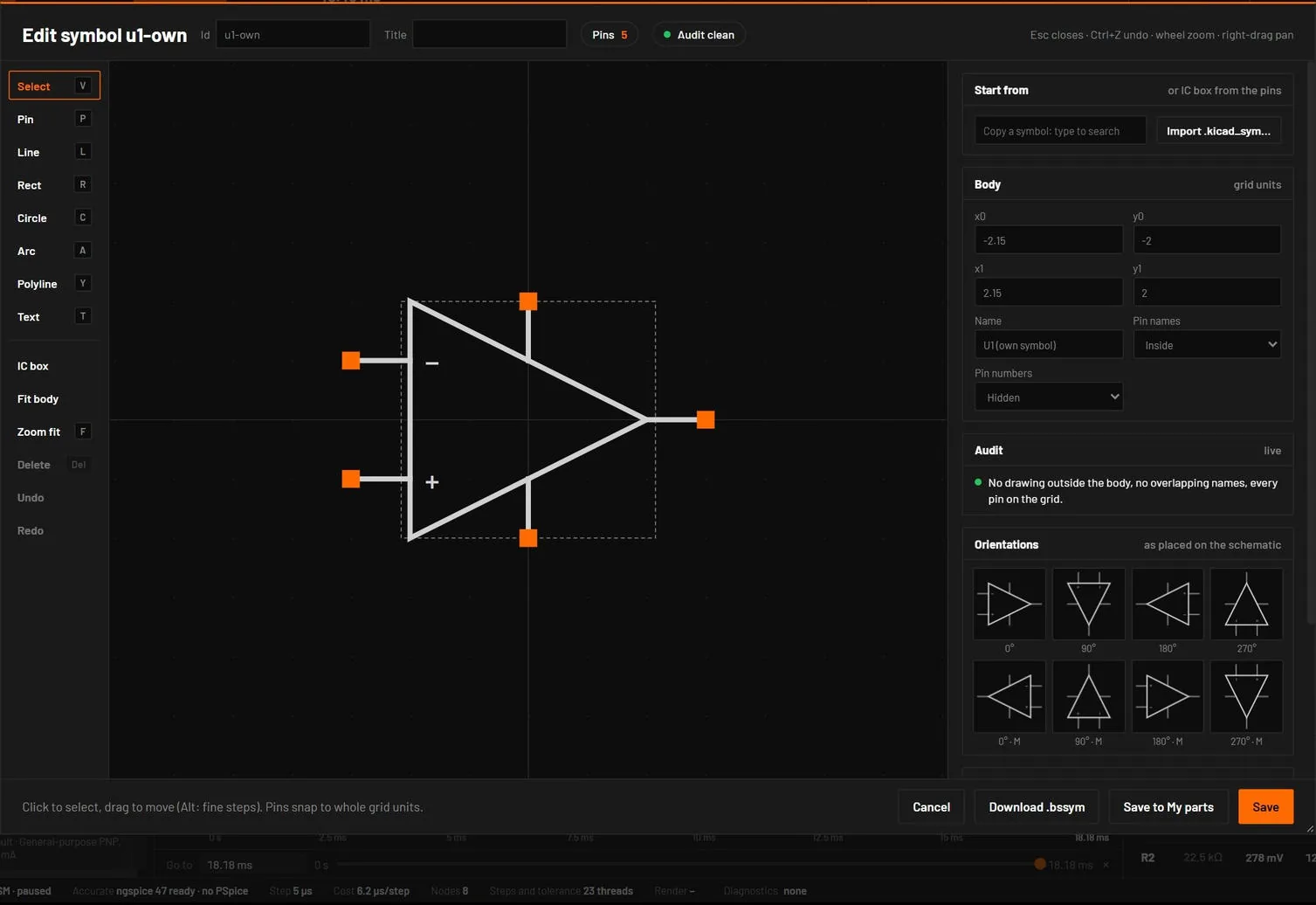
46.3The layout
The header has the symbol's Id (lower case, cleaned as you type), its Title (text drawn in the body), the pin count and the audit state. The tools are on the left, the canvas in the middle on a 20 px grid, and on the right the Properties, Audit, Orientations and Pin list cards.
46.4Start from an existing symbol
The Start from card has a search field. Type a name and pick a library symbol: its body, pins and drawing are copied into the editor, while the id and the title you gave stay. It’s one undo step. Import .kicad_sym… reads a KiCad symbol library: the pins of unit 1 with their side, role and shape, and the rectangles, polylines and circles, at 1.27 mm to one grid step. The editor opens on the first symbol of the file, and the others are offered in the same search as kicad: NAME. A new symbol's audit reads to do until the first Save.
46.5Tools
| Tool | Key | How it works |
|---|---|---|
| Select | V | Click a pin or drawing. Drag to move. Pins snap to whole grid steps and take the side they are on. Drawings snap to half steps, with Alt to tenths. Drag empty space to pan. |
| Pin | P | Click a grid point outside the body. The pin gets the next name and number and the side it’s on. |
| Line, Rectangle, Circle, Arc | L, R, C, A | Drag to draw. Alt for fine steps. The radius is the drag distance. |
| Polyline | Y | Click points. Double-click, Enter or clicking the last point again finishes. |
| Text | T | Click to drop a text and return to Select. |
| IC box | Lays the pins out as an IC: supplies on top, grounds at the bottom, outputs right, inputs left. | |
| Fit body | Fits the body rectangle around the pins. | |
| Zoom fit | F | Fits the view. |
| Delete | Del | Removes the selected pin or drawing. |
| Undo / redo | Ctrl+Z / Ctrl+Y or Ctrl+Shift+Z | 200 steps. Each has a button in the tool column, Redo under Undo. |
The wheel zooms, right or middle drag pans. Esc cancels a drawing in progress, then returns to Select, then closes the editor. With unsaved edits, Esc or a click outside first shows a line saying so; press again within 4 seconds to discard them. Cancel discards at once.
46.6Properties
| Selected | Fields |
|---|---|
| A pin | Name, Number, X, Y, Side (left, right, top, bottom), Role (in, out, bidir, tristate, passive, power in, power out, open collector, open emitter, nc, unspecified), Shape (line, inverted, clock, inverted clock) and Length of the lead. |
| A drawing | Position, end point, radius, start and end angle for arcs, text and size, Closed for polylines, line width 0.5 to 4 px. |
| Nothing (the body) | The body corners, the name shown in the library, Pin names inside or hidden, Pin numbers outside or hidden. |
46.7Pin list
Type one pin per line as number name function, for example 1 VIN in, and press Auto-place pins to lay them out as an IC box. A suffix :l, :r, :t or :b on the name forces a side, such as VIN:t. A line with only a name uses its line number. Lines starting with # are comments.
# LDO, SOT-23-5
1 VIN in
2 GND gnd
3 EN in
4 NC nc
5 VOUT out
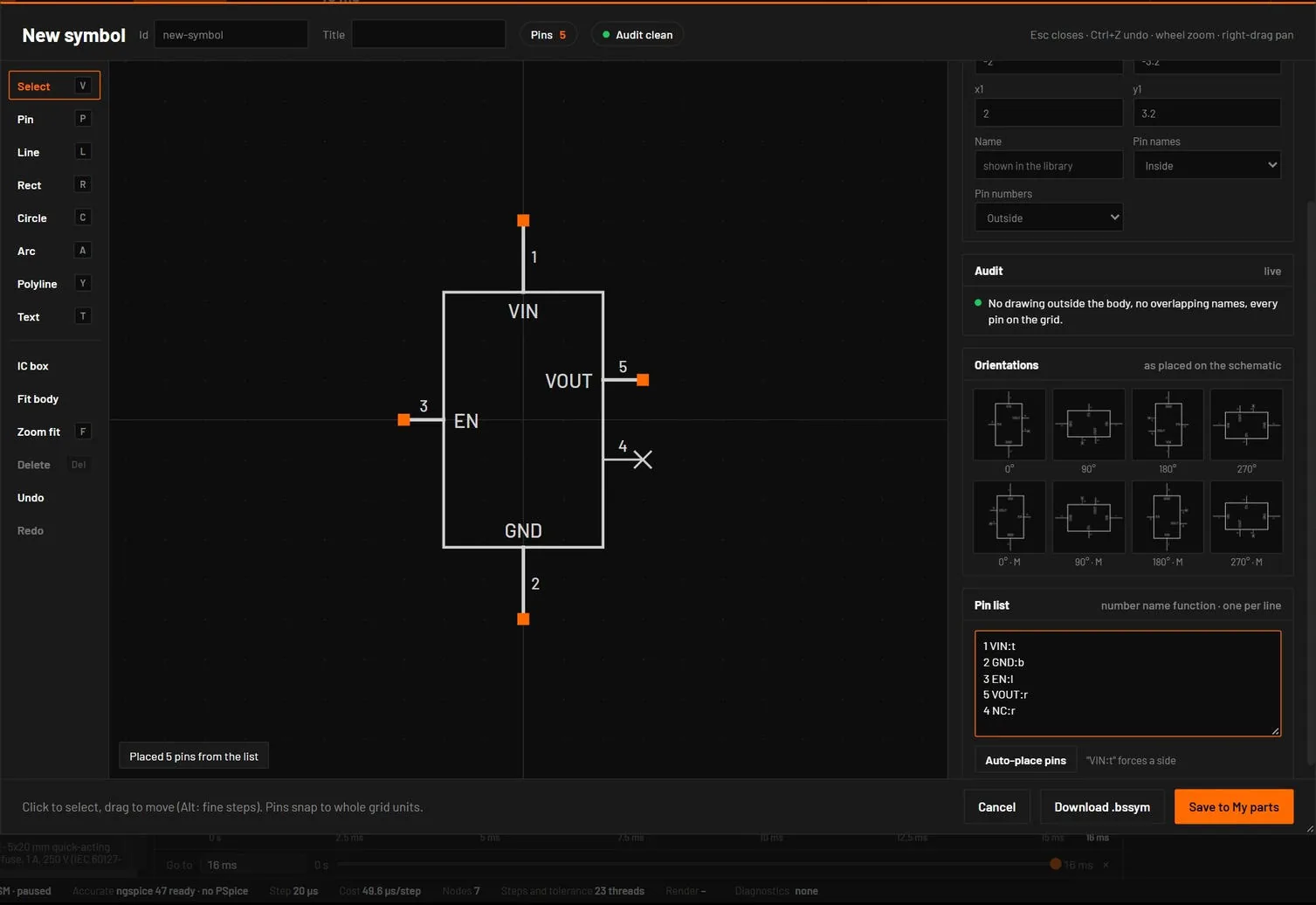
46.8Audit
The audit runs as you edit.
| Kind | Checks |
|---|---|
| Errors (block saving) | An id that isn’t lower-case letters, digits, dots, dashes and underscores. A body with no area. No pins. A pin with no name or number. A pin number used twice, or not on the part's package. A pin off the grid, two pins on one point, a pin not on its stated side. A polyline with one point. A circle or arc with no radius. Empty text. A filled shape (symbols are outlines). A line width outside 0 to 4. |
| Warnings | A pin on the body edge with no lead. A drawing outside the body. A name or text that doesn’t fit in the body. Overlapping names or numbers. |
Problem pins turn red or amber on the canvas. The Orientations card shows the symbol at 0°, 90°, 180° and 270°, mirrored and not, with text kept upright as on the schematic.
46.9My parts
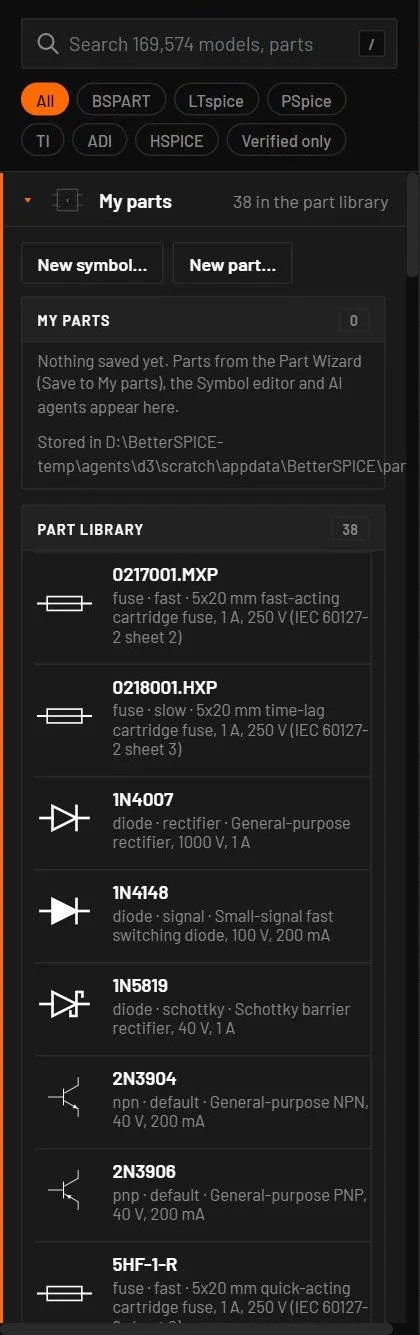
- My parts is the first family in the library. It lists what you saved from the Part Wizard and the symbol editor, what AI agents made, and files you added.
- Desktop: the files are in
%APPDATA%\BetterSPICE\partsas.bspartand.bssym. Files you copy there appear at the next start. Browser: they are kept in the browser's storage. - Saving a part with the number of another part in My parts asks before replacing it.
- Click a row to place it. Edit part opens a part in the Part Wizard: your own parts are saved back in place (a new part number renames them), a library part opens as a copy. Edit symbol opens the symbol editor on it. Remove deletes your own items after Confirm.
- New part… opens the Part Wizard on the new part you were making, or on a fresh one after an edit.
- Part library below lists the parts shipped with BetterSPICE. They are read only.
- A damaged file shows its error on its row and cannot be placed.