
Menus and the command palette
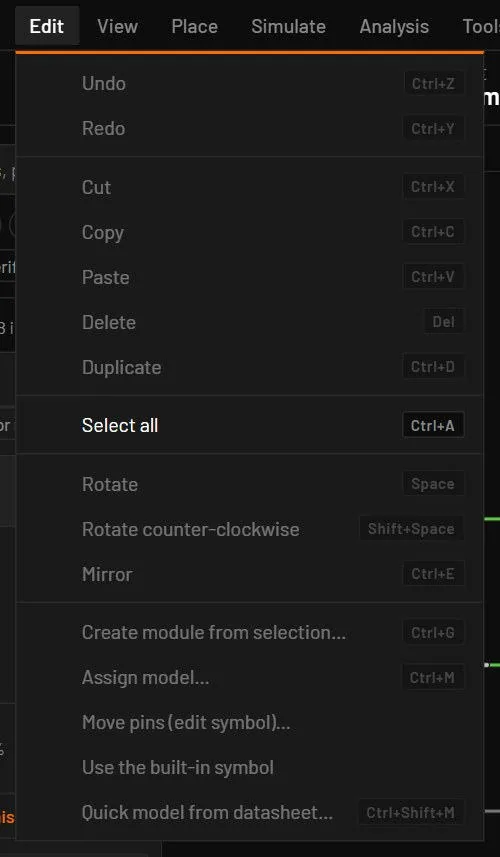
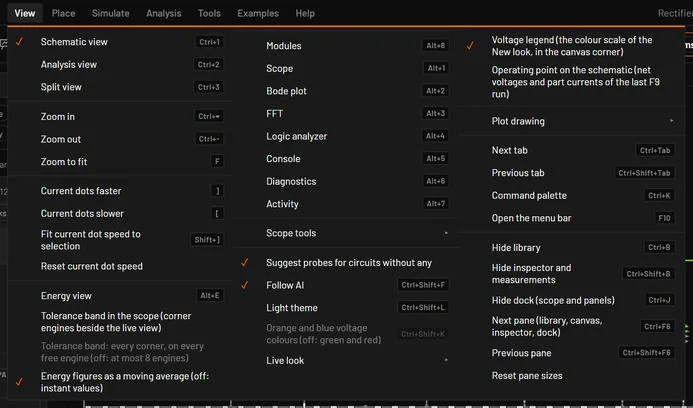
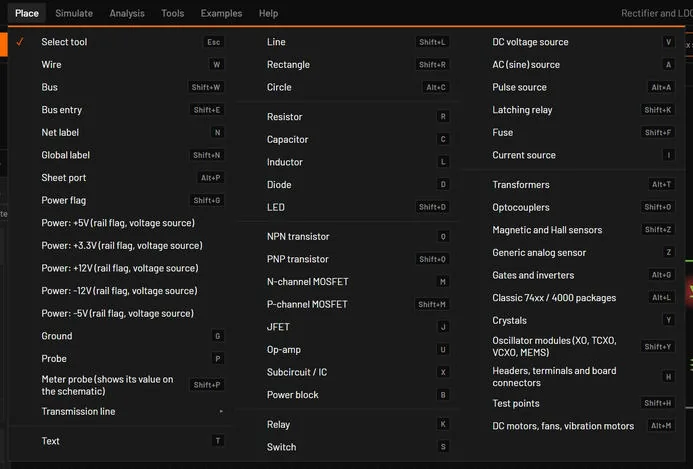
Every command lives in a menu. The same commands are in the command palette, and most have a key. The tables list each entry as the app shows it, read from the app's own command list.
20.1Using the menus
- Click a menu title to open it. While one is open, moving the pointer over another title switches to it. Click outside to close.
- Keyboard: F10 opens File. Up and Down move between entries, Left and Right switch menus, Enter runs, Esc closes.
- Each row shows a tick when the setting is on, the label and the first shortcut. Greyed rows can't run now. Running one anyway, from the palette or a key, shows a message saying why, for example "Select a part first, then assign its model (or double-click the part)."
- Long menus use two or three columns. A menu that would run off the right edge of the window moves left to fit. Submenus such as and open to the side. From the keyboard, F10 and the arrow keys walk the menus, Right or Enter on a row with a ▸ opens its submenu and Left comes back.
20.2File
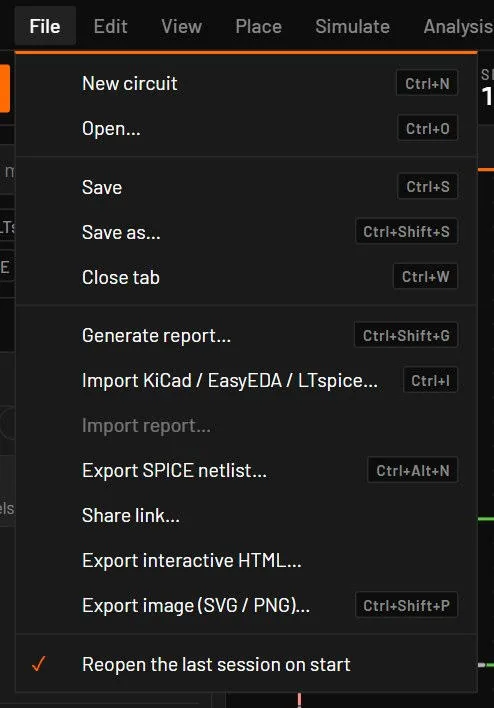
| Command | Shortcut | What it does |
|---|---|---|
| Import report… | none | Reopens the Import report of an imported tab. Greyed for other tabs. |
| New circuit | Ctrl+N | Opens an empty circuit in a new tab, or reuses the open tab when it's an untouched empty untitled circuit. A new circuit starts at rest. |
| Open… | Ctrl+O | Opens a .bsc (or .json) circuit in a new tab. A file that's already open is brought to the front. |
| Save | Ctrl+S | Saves to the circuit's file. A circuit with no file of its own (new, an example, an import) asks for a name first. |
| Save as… | Ctrl+Shift+S | Saves under a new name or in another folder. The browser asks for the name, then downloads. |
| Reopen the last session on start | none | Ticked (the default): the tabs of the last session open again at the next start (Start where you left off). Unticked: a blank sheet every time. |
| Close tab | Ctrl+W | Closes the tab. With unsaved changes it asks Save, Don't save or Cancel first. |
| Generate report… | Ctrl+Shift+G | Builds one HTML file with the schematic, parts, results and diagnostics (Generate report). |
| Import KiCad / EasyEDA / LTspice… | Ctrl+I | Reads a schematic from another tool into a new tab (Importing KiCad and EasyEDA Pro). |
| Export SPICE netlist… | Ctrl+Alt+N | Writes the circuit as an ngspice netlist (.cir). |
| Share link… | none | |
| Export interactive HTML… | none | |
| Export image (SVG / PNG)… | Ctrl+Shift+P | Saves or copies a picture of the schematic. |
| Recent: file | none | Desktop only. The last 8 circuits. |
| Clear recent files | none | Desktop only. Empties the list. The message offers Undo. |
20.3Edit
| Command | Shortcut | What it does |
|---|---|---|
| Undo | Ctrl+Z | Reverses the last edit. 300 steps per tab. |
| Redo | Ctrl+Y or Ctrl+Shift+Z | Repeats an undone edit. |
| Cut | Ctrl+X | Copies the selection and deletes it. |
| Copy | Ctrl+C | Copies the selection, also to the system clipboard as text. |
| Paste | Ctrl+V | Pastes at the pointer with new designators. |
| Delete | Del or Backspace | Deletes the selection. |
| Duplicate | Ctrl+D | Copies and pastes the selection two grid steps away. |
| Create module from selection… | Ctrl+G | Turns the selection into a module, a hierarchical sheet in a box (Hierarchical sheets and buses). |
| Select all | Ctrl+A | Selects everything on the sheet. |
| Assign model… | Ctrl+M | Opens the model dialog for the selected part. |
| Move pins (edit symbol)… | none | |
| Use the built-in symbol | none | |
| Quick model from datasheet… | Ctrl+Shift+M | Fits a model to datasheet numbers. |
| Rotate | Space | Rotates the selection 90° clockwise. With Shift, counter-clockwise. Also rotates the part being placed. |
| Rotate counter-clockwise | Shift+Space | |
| Mirror | Ctrl+E | Mirrors the selection left to right. Also mirrors the part being placed. |
20.4View
| Command | Shortcut | What it does |
|---|---|---|
| Plot drawing: automatic (the graphics card when it is a hardware one, else the processor) | none | The Analysis plot draws on the graphics card where that works, else on the processor. The default (Plot drawing). |
| Plot drawing: graphics card (WebGL2) | none | The Analysis plot always draws on the graphics card (WebGL2). |
| Plot drawing: processor (compatible, slower with many traces) | none | The Analysis plot draws on the processor: compatible, slower with many traces. |
| Suggest probes for circuits without any | none | Ticked: the empty scope of a circuit with no probes offers a few key nets to probe (Probe suggestions). |
| Next tab | Ctrl+Tab | The next tab. |
| Previous tab | Ctrl+Shift+Tab | The previous tab. |
| Modules | Alt+8 | |
| Schematic view | Ctrl+1 | The canvas and the dock. |
| Analysis view | Ctrl+2 | Only the Analysis view. |
| Split view | Ctrl+3 | The schematic on top, the Analysis view below. |
| Zoom in | Ctrl+= | Zooms at the centre. |
| Zoom out | Ctrl+- | Zooms at the centre. |
| Zoom to fit | F | Fits the whole circuit in the window, at most 1.3× so a small circuit isn't blown up. |
| Current dots faster | ] | Dot speed ×1.5. |
| Current dots slower | [ | Dot speed ÷1.5. |
| Fit current dot speed to selection | Shift+] | Sets the dot speed from the selected part's current. |
| Energy view | Alt+E | |
| Tolerance band in the scope (corner engines beside the live view) | none | Shades the range each scope trace takes with the parts at the ends of their tolerance, from extra live engines beside the live view. Off by default (Tolerance band). |
| Tolerance band: every corner, on every free engine (off: at most 8 engines) | none | The tolerance band from every corner of the toleranced parts, on every free engine. Off: at most 8 engines. |
| Energy figures as a moving average (off: instant values) | none | |
| Hide library | Ctrl+B | Hides or shows the library pane. Remembered. |
| Hide inspector and measurements | Ctrl+Shift+B | Hides or shows the inspector and Measurements. Remembered. |
| Hide dock (scope and panels) | Ctrl+J | Hides or shows the dock. Remembered. |
| Next pane (library, canvas, inspector, dock) | Ctrl+F6 | Moves the keyboard focus to the next pane: library search, canvas, inspector, dock. |
| Previous pane | Ctrl+Shift+F6 | Moves the focus to the previous pane. |
| Reset pane sizes | none | Every pane back to its default size. |
| Reset current dot speed | none | Back to 1×. |
| Scope | Alt+1 | Opens that dock tab. |
| Bode plot | Alt+2 | Opens that dock tab. |
| FFT | Alt+3 | Opens that dock tab. |
| Logic analyzer | Alt+4 | Opens the logic analyzer. |
| Console | Alt+5 | Opens the Console tab. |
| Diagnostics | Alt+6 | Opens the Diagnostics tab. |
| Activity | Alt+7 | Opens the Activity log. |
| Follow AI | Ctrl+Shift+F | Your view follows an AI agent while it works. |
| Light theme | Ctrl+Shift+L | Light or dark interface. |
| Orange and blue voltage colours (off: green and red) | Ctrl+Shift+K | Orange and blue wires, or the green and red scale. It belongs to the Classic live look and is greyed out in the New look. |
| Live look: Classic (voltage colours scaled to the circuit, even dots) | none | The live look of version 0.3 and earlier: wire colours stretched to the circuit, and yellow dots of one size. |
| Live look: New (one voltage scale from 1 mV to 1 kV, dots sized by current) | none | One absolute voltage scale from 1 mV to 1 kV, and current dots whose size and brightness show the current (Live look). |
| Voltage legend (the colour scale of the New look, in the canvas corner) | none | Shows or hides the colour scale of the New look in the corner of the schematic (Voltage legend). |
| Operating point on the schematic (net voltages and part currents of the last F9 run) | none | Writes the last operating point (F9) on the schematic: net voltages and two-pin part currents. They go away when the circuit changes (Operating point). |
| Command palette | Ctrl+K | Search and run any command. |
| Open the menu bar | F10 | Opens the File menu for keyboard use. |
| Add the selected parts to the scope | none | Probes the selected parts. |
| New scope pane | none | Adds a scope pane. |
| Scope cursors | none | Cursor lines A and B on the scopes. |
| Link scope time axes | none | Zoom and pan every scope together. |
| Scope: reset zoom | none | Every scope back to the full window. |
20.5Place
| Command | Shortcut | What it does |
|---|---|---|
| Select tool | Esc | Back to selecting and moving. |
| Wire | W | Draw wires. |
| Bus | Shift+W | Draw a bus. |
| Bus entry | Shift+E | Join a wire to a bus. |
| Net label | N | Name a net. |
| Global label | Shift+N | Name a net on every sheet. |
| Sheet port | Alt+P | A connection out of a hierarchical sheet. |
| Power flag | Shift+G | A named supply symbol. |
| Power: +5V (rail flag, voltage source) | none | |
| Power: +3.3V (rail flag, voltage source) | none | |
| Power: +12V (rail flag, voltage source) | none | |
| Power: -12V (rail flag, voltage source) | none | |
| Power: -5V (rail flag, voltage source) | none | |
| Ground | G | The 0 V reference. |
| Probe | P | Probe a voltage or a current. |
| Meter probe (shows its value on the schematic) | Shift+P | The same, and the probe shows its live value in its tag on the schematic. |
| Text | T | A note with no electrical meaning. |
| Line | Shift+L | Drawing only. |
| Rectangle | Shift+R | Drawing only. |
| Circle | Alt+C | Drawing only. |
| Resistor | R | |
| Capacitor | C | |
| Inductor | L | |
| Diode | D | |
| LED | Shift+D | |
| NPN transistor | Q | |
| PNP transistor | Shift+Q | |
| N-channel MOSFET | M | |
| P-channel MOSFET | Shift+M | |
| JFET | J | |
| Op-amp | U | |
| Subcircuit / IC | X | A generic IC box for a vendor model, or a box you build the inside of (Editing a subcircuit). |
| Power block | B | LDO, buck, boost and more. Also opens the Power family in the library. |
| Relay | K | |
| Switch | S | |
| DC voltage source | V | |
| AC (sine) source | A | |
| Pulse source | Alt+A | |
| Wire (length, gauge): R + L, no ground | none | |
| Latching relay | Shift+K | |
| Fuse | Shift+F | |
| Current source | I | |
| Transformers | Alt+T | |
| Optocouplers | Shift+O | |
| Magnetic and Hall sensors | Shift+Z | |
| Generic analog sensor | Z | |
| Gates and inverters | Alt+G | |
| Classic 74xx / 4000 packages | Alt+L | |
| Crystals | Y | |
| Oscillator modules (XO, TCXO, VCXO, MEMS) | Shift+Y | |
| Headers, terminals and board connectors | H | |
| Test points | Shift+H | |
| DC motors, fans, vibration motors | Alt+M | |
| Transmission line › | none | Submenu: Ideal line (Z0, delay), PCB trace (microstrip), PCB trace (stripline), PCB coplanar waveguide, Wire over ground, Wire pair, Coax cable, Twisted pair, differential PCB microstrip, differential PCB stripline, differential Twisted pair, differential Wires over ground, differential Ideal pair. |
20.6Simulate
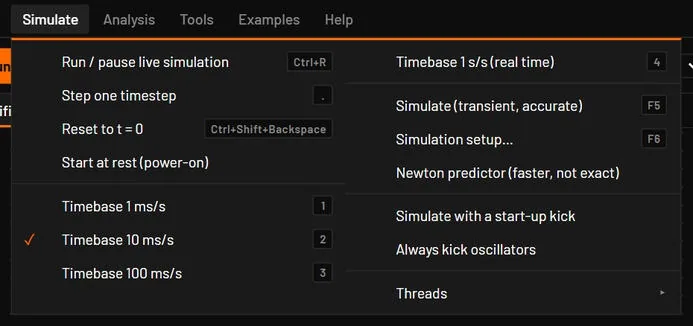
| Command | Shortcut | What it does |
|---|---|---|
| Simulate with a start-up kick | none | Runs a transient with a 5 µV pulse on one input of the part with gain, so an oscillator that sits exactly balanced starts (Start-up kick for oscillators). |
| Always kick oscillators | none | Ticked: an oscillator that sits balanced always gets the start-up kick. Saved on this computer. |
| Run / pause live simulation | Ctrl+R | Runs or pauses the live simulation. |
| Step one timestep | . | Advances the paused simulation by one timestep. |
| Reset to t = 0 | Ctrl+Shift+Backspace | Restarts the live simulation at t = 0. |
| Start at rest (power-on) | none | Ticked: the live simulation starts from rest (every node 0 V, capacitors empty, as at power-on). Unticked: from the DC operating point. Restarts at t = 0. Saved in the circuit. New circuits are ticked. Examples and older files aren't. |
| Timebase 1 ms/s | 1 | Sets the timebase. A message confirms it. |
| Timebase 10 ms/s | 2 | Sets the timebase. |
| Timebase 100 ms/s | 3 | Sets the timebase. |
| Timebase 1 s/s (real time) | 4 | Sets the timebase. |
| Simulate (transient, accurate) | F5 | Runs a transient with Simulate. From the Schematic view the window splits to show the result. |
| Simulation setup… | F6 | Opens the setup with a tab for every analysis. |
| Newton predictor (faster, not exact) | none | Starts each time step of a Simulate transient from a point extrapolated from the last two steps. Off by default: faster on some smooth analog circuits, not exact (Newton predictor). |
| Threads: Auto (23) | none | |
| Threads: 1 | none | |
| Threads: 2 | none | |
| Threads: 4 | none | |
| Threads: 8 | none | |
| Threads: 16 | none | |
| Threads: 24 | none |
20.7Analysis
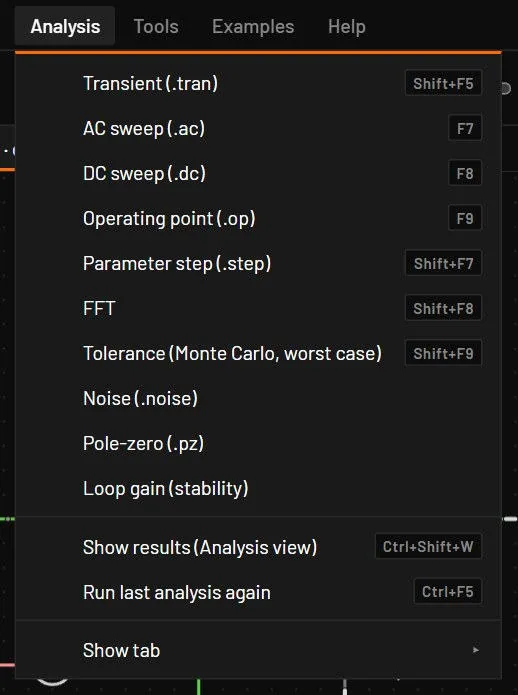
| Command | Shortcut | What it does |
|---|---|---|
| Transient (.tran) | Shift+F5 | Runs the transient with the setup saved in the circuit. With none yet, opens the Transient tab. Run there saves it. |
| AC sweep (.ac) | F7 | Runs the AC sweep with the saved setup, or opens the AC tab the first time. |
| DC sweep (.dc) | F8 | Runs the DC sweep with the saved setup, or opens the DC tab the first time. |
| Operating point (.op) | F9 | Runs at once and shows the table. |
| Parameter step (.step) | Shift+F7 | Runs the parameter step with the saved setup, or opens the Step tab the first time. |
| FFT | Shift+F8 | Runs the FFT with the saved setup, or opens the FFT tab the first time. |
| Tolerance (Monte Carlo, worst case) | Shift+F9 | |
| Noise (.noise) | none | Opens the Noise tab: noise density at an output, each part’s share and the totals (Noise). |
| Pole-zero (.pz) | none | Opens the Pole-zero tab: the poles and zeros of a transfer function (Pole-zero). |
| Loop gain (stability) | none | Opens the Loop gain tab: crossover, phase margin and gain margin of a feedback loop (Loop gain). |
| Show results (Analysis view) | Ctrl+Shift+W | Switches to the Analysis view (formerly called the waveform viewer). |
| Run last analysis again | Ctrl+F5 | Repeats the last analysis with its setup. |
| Analysis view: Transient tab | none | |
| Analysis view: AC sweep tab | none | |
| Analysis view: DC sweep tab | none | |
| Analysis view: Operating point tab | none | |
| Analysis view: Parameter step tab | none | |
| Analysis view: FFT tab | none |
20.8Tools
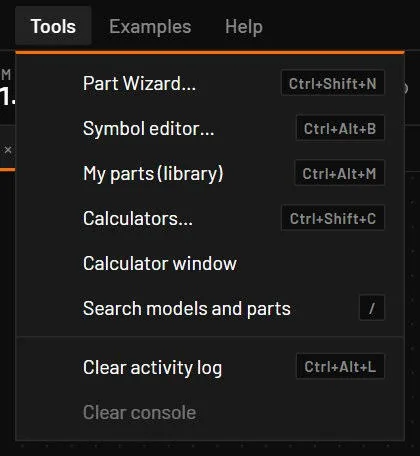
| Command | Shortcut | What it does |
|---|---|---|
| Part Wizard… | Ctrl+Shift+N | Builds a part file from a datasheet (Part Wizard). |
| Symbol editor… | Ctrl+Alt+B | Draws a schematic symbol (Symbol editor and My parts). |
| My parts (library) | Ctrl+Alt+M | Opens My parts at the top of the library. |
| Search models and parts | / | Jumps to the library search box. |
| Clear activity log | Ctrl+Alt+L | Empties the Activity tab. The message offers Undo. |
| Clear console | none | Empties the Console tab, which keeps every log() and print line of every circuit opened in the session. Greyed when it's empty. The message offers Undo. |
| Calculators… | Ctrl+Shift+C | Opens the calculator picker: type a word and press Enter (Calculators). |
| Calculator window | none | Opens the calculator window with every calculator in a list. |
20.9Examples
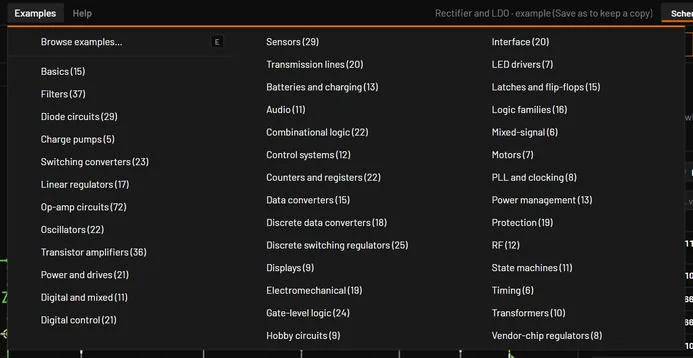
| Command | Shortcut | What it does |
|---|---|---|
| Browse examples… | E | Opens the example browser. |
| Category (N) | none | One entry per category. Opens the browser on that category. |
20.10Help
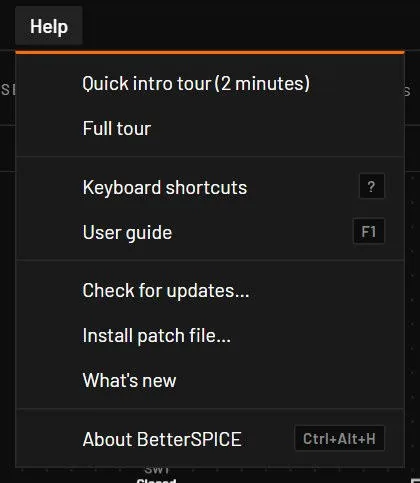
| Command | Shortcut | What it does |
|---|---|---|
| User manual (PDF) | none | Opens this manual (the PDF) in your PDF viewer. Desktop, and a browser whose server has the manual. |
| What's new | none | Lists what this version brings. It also opens by itself once, on the first start after an update. |
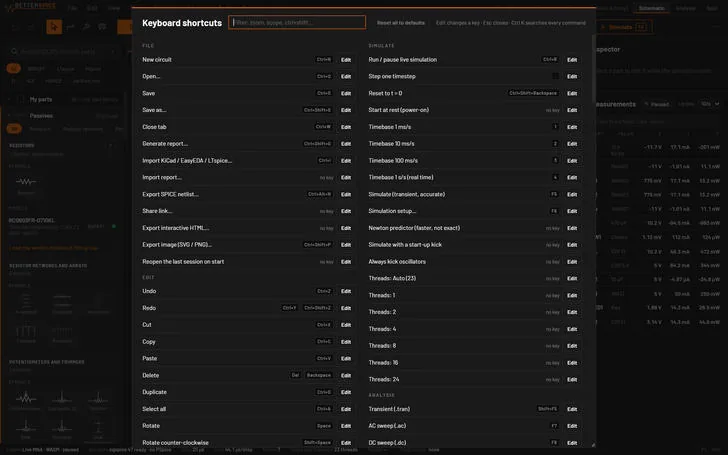
| Keyboard shortcuts | ? | Every shortcut, with a filter box. |
| Check for updates… | none | Asks the releases server for a newer version. Desktop app. |
| Install patch file… | none | Installs a patch file, with no server needed. Desktop app. |
| About BetterSPICE | Ctrl+Alt+H | Version, engines, ngspice, WebView2, the settings folder. |
| User guide | F1 | Opens the user guide, this manual inside the app (The user guide). With the pointer over something, it opens at the section that explains it. |
| Quick intro tour (2 minutes) | none | |
| Full tour | none |
20.11Command palette
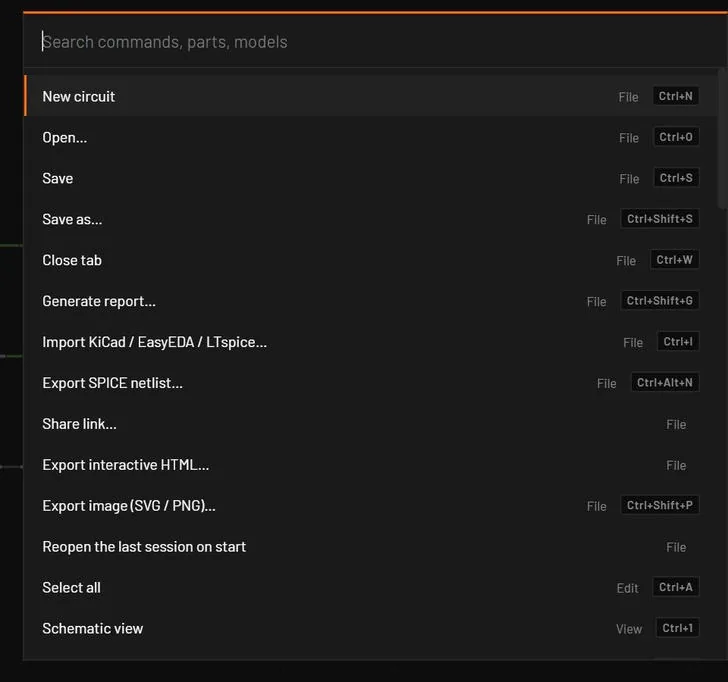
Ctrl+K opens a search box over every command and every part and model in the library. Type part of a name, for example exp png or tlv9062. The search matches letters in order, so a few letters are enough, and whole-word matches rank first. Up and Down choose, Enter runs, Esc closes. With nothing typed, it lists the last five commands you ran from it under Recent. Rows come in menu order (File, Edit, View …). Commands that can't run now are listed dimmed, after the ones that can, so the first row is never one you can't use. Enter on one says why, for example "Select a part first." or "Nothing to undo." Every row shows the command's menu and shortcut, so the palette is also the quickest way to learn the keys.
20.12Keyboard rules
- Keys are matched by letter, so they work on any keyboard layout. With a non-Latin layout, punctuation keys follow the key position.
- While you type in a text or number field, every shell shortcut with Ctrl or an F-key still works, and the field commits its text first: type a stop time, then press F5. Canvas keys such as Ctrl+Z and Ctrl+C act on the text in the field.
- A focused slider keeps only its arrow, Home, End and Page keys, and a tick box or button only Space and Enter. Every other shortcut works.
- While a dialog or menu is open, only Esc and Ctrl+K reach the app. E opens the examples only when no other dialog is open.
- The symbol editor turns every other key off while it's open, except Esc.
- Esc does the most useful thing first: in a dialog field, give up the edit of that field, then close a dialog, close a menu, take over from an AI agent, leave a placing or drawing tool, and then clear the selection. So typing
999into a field and pressing Esc keeps the old value and leaves the dialog open. The next Esc closes it.
20.13About
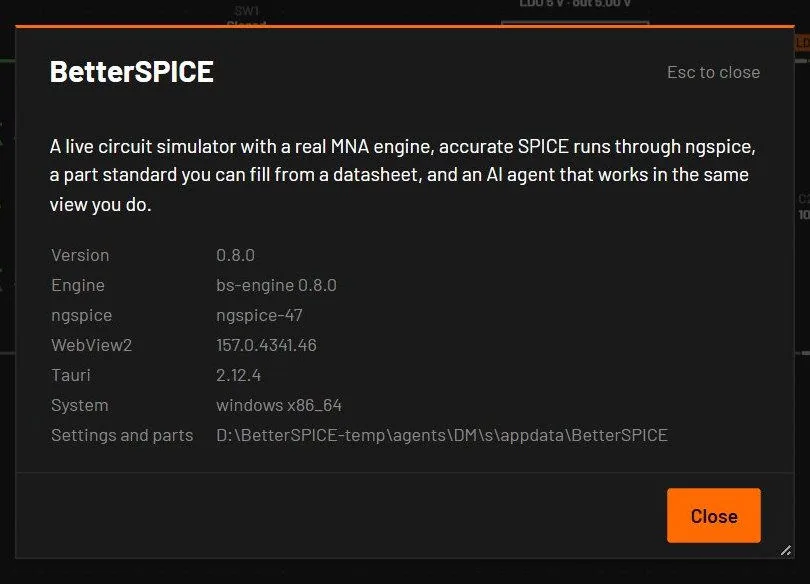
About lists the version, the live engine, the ngspice version, WebView2, Tauri, Windows and the settings folder (%APPDATA%\BetterSPICE). The browser version shows the version and engine only.
20.14The user guide
The user guide is this manual inside the app: the same text, tables and pictures, made from the same source files as the PDF, so the two cannot differ. It is part of the app, so it works offline, in both themes. Open it with , with the F1 help hint at the right end of the status bar, or with F1.
F1 opens the section about the thing under the pointer
- Point at something and press F1. A menu or a menu entry, a toolbar button, a library group or tile, the inspector and its fields, a dock tab, a plot, the status bar, or a dialog and its tabs and steps: the guide opens at the section that explains it. Pointing at Run opens Run, pause, step and reset, and pointing at the Bode tab opens Bode tab.
- On the schematic, a part opens the entry for its type, for example Resistor or MOSFET (N, P) in Devices: passives and Devices: semiconductors. A wire opens Wires, a net label, power flag or ground opens Labels, flags and ground, and a module box opens Hierarchical sheets and buses. A diagnostic marker opens its code in the table in Every code, A to Z.
- With the pointer over nothing in particular, F1 opens the guide where you left it, at the contents the first time.
- From the keyboard, move to a control with Tab and press F1: the guide follows the keyboard focus when you have not moved the pointer since.
- It works while a dialog or menu is open, without closing it: the guide appears in front. In a text or number field, F1 leaves the text and the caret alone, and the field keeps what you typed.
- In a pop-out window (a scope, the dock, the Analysis view), F1 opens the guide in that window.
Using the guide
- The Contents button, and the tree beside the text when the panel is wide, list every chapter. Links in the text jump to the section they name, and Back and Forward (Alt+Left, Alt+Right, or the mouse side buttons) walk your path.
- The search box finds every section that has all the words you type, best first. Enter opens the first. The words are marked in the section you open.
- Find (Ctrl+F) searches the section you are reading and steps through the matches with Enter and Shift+Enter. Click a picture to enlarge it, and click it again to shrink it.
- Three buttons choose where the guide is shown: a floating panel on the right of the window (the default, wide enough to read beside the circuit, and drag its left edge to resize it), a Guide tab in the dock, or its own pop-out window. The panel and the tab are remembered. Esc closes the panel.
- PDF in the guide's bar, and , open the printable manual where the PDF is installed.