
Keyboard shortcuts by task
Every key the app knows, grouped by what you’re doing. The list is read from docs/HOTKEYS.md, which the app generates. ? shows the same list in the app, and there every key can be changed: press Edit on a row, then press the new keys. Esc cancels, Backspace clears the key, and a Reset button on a changed row (and Reset all to defaults at the bottom) puts the defaults back. A key that another command already holds is named, and you choose Replace or Cancel. Esc, F1 and Ctrl+Shift+R cannot be taken. Menus, the palette, the toolbar tips and the hints in the status bar show your keys. The tables below list the defaults.
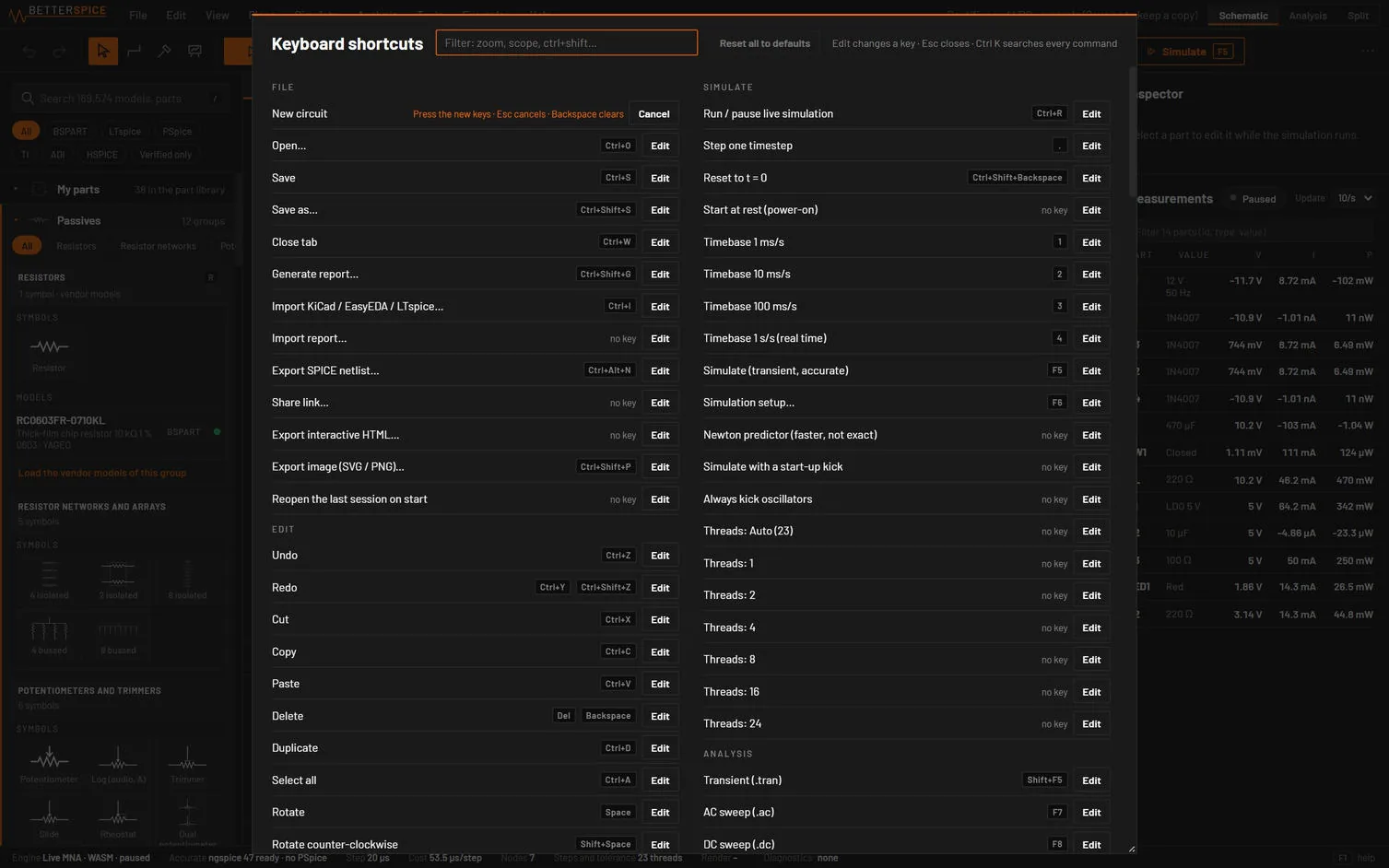
Editor keys act on the schematic canvas. Shell keys work everywhere outside text fields. While you type in a field, only Ctrl combinations, F-keys and Esc reach the app. While a dialog or menu is open, only Esc and Ctrl+K do. Keys are matched by letter, so they work on any keyboard layout. In the browser version on a Mac, Cmd works wherever this manual says Ctrl.
17.1Place parts and draw
| Key | Action | Where it works |
|---|---|---|
| A | AC (sine) source | editor |
| B | Power block | editor |
| C | Capacitor | editor |
| D | Diode | editor |
| Esc | Select tool | editor |
| G | Ground | editor |
| I | Current source | editor |
| J | JFET | editor |
| K | Relay | editor |
| L | Inductor | editor |
| M | N-channel MOSFET | editor |
| N | Net label | editor |
| P | Probe | editor |
| Q | NPN transistor | editor |
| R | Resistor | editor |
| S | Switch | editor |
| Shift+D | LED | editor |
| Shift+E | Bus entry | editor |
| Shift+F | Fuse | editor |
| Shift+G | Power flag | editor |
| Shift+K | Latching relay | editor |
| Shift+L | Line | editor |
| Shift+M | P-channel MOSFET | editor |
| Shift+N | Global label | editor |
| Shift+P | Meter probe (shows its value on the schematic) | editor |
| Shift+Q | PNP transistor | editor |
| Shift+R | Rectangle | editor |
| Shift+W | Bus | editor |
| T | Text | editor |
| U | Op-amp | editor |
| V | DC voltage source | editor |
| W | Wire | editor |
| X | Subcircuit / IC | editor |
| Alt+A | Pulse source | shell |
| Alt+C | Circle | shell |
| Alt+G | Gates and inverters | shell |
| Alt+L | Classic 74xx / 4000 packages | shell |
| Alt+M | DC motors, fans, vibration motors | shell |
| Alt+P | Sheet port | shell |
| Alt+T | Transformers | shell |
| H | Headers, terminals and board connectors | shell |
| Shift+H | Test points | shell |
| Shift+O | Optocouplers | shell |
| Shift+Y | Oscillator modules (XO, TCXO, VCXO, MEMS) | shell |
| Shift+Z | Magnetic and Hall sensors | shell |
| Y | Crystals | shell |
| Z | Generic analog sensor | shell |
17.2Select and edit
| Key | Action | Where it works |
|---|---|---|
| Backspace | Delete | editor |
| Ctrl+A | Select all | editor |
| Ctrl+C | Copy | editor |
| Ctrl+D | Duplicate | editor |
| Ctrl+E | Mirror | editor |
| Ctrl+Shift+Z | Redo | editor |
| Ctrl+V | Paste | editor |
| Ctrl+X | Cut | editor |
| Ctrl+Y | Redo | editor |
| Ctrl+Z | Undo | editor |
| Del | Delete | editor |
| Shift+Space | Rotate counter-clockwise | editor |
| Space | Rotate | editor |
| Arrow keys | Nudge selection 1 grid (Shift: 5) | editor · selection |
| Ctrl+G | Create module from selection… | shell |
| Ctrl+M | Assign model… | shell |
| Ctrl+Shift+M | Quick model from datasheet… | shell |
17.3Run the live simulation
| Key | Action | Where it works |
|---|---|---|
| . | Step one timestep | editor |
| Ctrl+R | Run / pause live simulation | editor |
| 1 | Timebase 1 ms/s | shell |
| 2 | Timebase 10 ms/s | shell |
| 3 | Timebase 100 ms/s | shell |
| 4 | Timebase 1 s/s (real time) | shell |
| Ctrl+Shift+Backspace | Reset to t = 0 | shell |
17.4Simulate and analyse
| Key | Action | Where it works |
|---|---|---|
| Ctrl+F5 | Run last analysis again | shell |
| Ctrl+Shift+W | Show results (Analysis view) | shell |
| F5 | Simulate (transient, accurate) | shell |
| F6 | Simulation setup… | shell |
| F7 | AC sweep (.ac) | shell |
| F8 | DC sweep (.dc) | shell |
| F9 | Operating point (.op) | shell |
| Shift+F5 | Transient (.tran) | shell |
| Shift+F7 | Parameter step (.step) | shell |
| Shift+F8 | FFT | shell |
| Shift+F9 | Tolerance (Monte Carlo, worst case) | shell |
17.5View, panes and windows
| Key | Action | Where it works |
|---|---|---|
| F | Zoom to fit | editor |
| [ | Current dots slower | shell |
| ] | Current dots faster | shell |
| Alt+1 | Scope | shell |
| Alt+2 | Bode plot | shell |
| Alt+3 | FFT | shell |
| Alt+4 | Logic analyzer | shell |
| Alt+5 | Console | shell |
| Alt+6 | Diagnostics | shell |
| Alt+7 | Activity | shell |
| Alt+8 | Modules | shell |
| Alt+E | Energy view | shell |
| Ctrl+- | Zoom out | shell |
| Ctrl+= | Zoom in | shell |
| Ctrl+1 | Schematic view | shell |
| Ctrl+2 | Analysis view | shell |
| Ctrl+3 | Split view | shell |
| Ctrl+B | Hide library | shell |
| Ctrl+F6 | Next pane (library, canvas, inspector, dock) | shell |
| Ctrl+J | Hide dock (scope and panels) | shell |
| Ctrl+K | Command palette | shell |
| Ctrl+Shift+B | Hide inspector and measurements | shell |
| Ctrl+Shift+F | Follow AI | shell |
| Ctrl+Shift+F6 | Previous pane | shell |
| Ctrl+Shift+K | Orange and blue voltage colours (off: green and red) | shell |
| Ctrl+Shift+L | Light theme | shell |
| Ctrl+Shift+Tab | Previous tab | shell |
| Ctrl+Tab | Next tab | shell |
| F10 | Open the menu bar | shell |
| Shift+] | Fit current dot speed to selection | shell |
17.6Files
| Key | Action | Where it works |
|---|---|---|
| Ctrl+O | Open… | editor |
| Ctrl+S | Save | editor |
| Ctrl+Shift+S | Save as… | editor |
| Ctrl+Alt+N | Export SPICE netlist… | shell |
| Ctrl+I | Import KiCad / EasyEDA / LTspice… | shell |
| Ctrl+N | New circuit | shell |
| Ctrl+Shift+G | Generate report… | shell |
| Ctrl+Shift+P | Export image (SVG / PNG)… | shell |
| Ctrl+W | Close tab | shell |
17.7Tools, examples and help
| Key | Action | Where it works |
|---|---|---|
| ? | Keyboard shortcuts | shell |
| / | Search models and parts | shell |
| Ctrl+Alt+B | Symbol editor… | shell |
| Ctrl+Alt+H | About BetterSPICE | shell |
| Ctrl+Alt+L | Clear activity log | shell |
| Ctrl+Alt+M | My parts (library) | shell |
| Ctrl+Shift+C | Calculators… | shell |
| Ctrl+Shift+N | Part Wizard… | shell |
| E | Browse examples… | shell |
| F1 | User guide | shell |
17.8Dialogs and the editor
| Key | Action | Where it works |
|---|---|---|
| Esc | Close dialog / menu, take over from the AI | dialog |
| Ctrl+E | Rotate / mirror the part being placed (Shift+Space: counter-clockwise) | editor · placing |
| Same part key | Rotate the part being placed (another part key switches to that part) | editor · placing |
| Space | Rotate / mirror the part being placed (Shift+Space: counter-clockwise) | editor · placing |
| Tab | Next ground domain: main, ISO1, …, a new one | editor · placing a ground |
17.9Mouse on the canvas
| Gesture | Result |
|---|---|
| Double-click net label | Rename net |
| Double-click part | Assign model |
| Double-click power flag, global label or sheet port | Rename it |
| Double-click probe tag | Name the probe |
| Double-click sheet | Open sheet |
| Double-click text note | Edit the text in place (Enter new line, Ctrl+Enter or click away to finish, Esc cancels) |
| Double-click value label | Edit value |
| Drag from a pin | Draw a wire |
| Hold Space + drag | Pan (a tap that panned does not rotate) |
| Middle | Pan |
| pinch | Zoom at cursor |
| right drag, two-finger scroll | Pan |
| Right-click part | Context menu |
| Wheel | Zoom at cursor |
| Shift+click | Probe against GND (on an isolated side the probe reads against its own ground) |
| Alt+click | Add the net or part current as a trace to the plot |
| Click | Select. Shift or Ctrl toggles in the selection. |
| Drag on empty canvas | Box select. Left to right: fully inside. Right to left: touching. |
| Drag a part | Move the selection. |
| Hold Space and drag | Pan. Space on its own rotates. |
| Click a switch | Toggle it while running. |
17.10Mouse in plots
| Gesture | Result |
|---|---|
| Hold the pointer over a plot | Read every trace. |
| Drag | Box zoom. |
| Wheel | Zoom in time. |
| Ctrl-drag, Shift-drag, right-drag or middle-drag | Pan. |
| Double-click | Reset the zoom. |
| Drag a cursor line | Move cursor A or B. |
17.11Mouse in the logic analyzer
| Gesture | Result |
|---|---|
| Click | Cursor A. |
| Shift-click | Cursor B. |
| Wheel | Zoom. |
| Drag | Pan. |
| Double-click | Follow live again. |